
Should you send your CV as a PDF or a Word file?
By Thomas Larsen, founder of Adapt to Success · · 9 min read
After I published my article on ATS myths (opens in a new tab), Jerry Kindall (opens in a new tab), an AI and product experience leader, left a comment on LinkedIn that I could not stop thinking about. Under Myth 4 he wrote that PDFs often contain "special glyphs for fi, ffl, and other combinations of letters", which can stop a system from recognising a word like Office. He had started sending his CV as a Word file for that reason.
I sent every one of my more than 2,200 applications as a PDF, saved from Word. That CV got me two interviews, so I had a personal reason to find out what the software actually got out of the file.
So instead of repeating advice, I tested it. Jerry and I each turned out to be right about half of it, and the half in between is the useful part.
The short answer
Both formats are accepted by the large systems. Unless the job advert asks for a PDF, a Word file is the safer choice, because it stores your text as plain letters and nothing else. If you do send a PDF, make it with Save as PDF in your word processor rather than by printing a web page to PDF. The difference is not in how the PDF looks. It is in what is stored behind the letters you see.
What the systems themselves say
The companies behind the software do not agree with each other. Textkernel, whose parser sits inside many of these systems, tells the companies that build on it: "If you want to minimize conversion problems, don't use PDF documents", adding that "PDF is a broken standard that often hides issues with the underlying text" (Textkernel, Getting started (opens in a new tab)). Greenhouse, one of the most widely used systems, tells candidates the opposite on its own help pages: "Upload a PDF for best results" (Greenhouse, MyGreenhouse FAQ (opens in a new tab)). Indeed's career guide sits in between: with a PDF, "it's not guaranteed that the ATS the employer uses can view and scan your resume" (Indeed Career Guide (opens in a new tab)).
On everything else, they agree.
What is inside a PDF
A Word file stores your CV as text: letters, in order, with formatting around them. A PDF stores something closer to a drawing. For every letter it records which shape to draw and where, and separately a small translation table that tells a program which letters each shape stands for. When a parser reads a PDF, it is reading that translation, not the shapes.
A ligature is one shape that replaces two or three letters. In many fonts f and i touch awkwardly, so the font has a ready-made shape for fi, another for fl and one for ffi. Unicode, the standard that numbers every character in every language, even has separate codes for them (Unicode, Alphabetic Presentation Forms (opens in a new tab)). Whether that matters depends entirely on what the translation table says sits behind the shape: the plain letters f, f and i, or the single code for ffi.
The test
On 7 October 2026 I made a fictional CV for "Alex Fictional", an office manager, packed with 29 words that tend to produce ligatures: Office, Officer, efficient, certified, workflow, Affinity, Staffing, traffic, specifications, Qualifications and so on. I turned it into PDFs in three ways: Save as PDF in Microsoft Word (Microsoft 365 on Windows), Download as PDF in Google Docs, and Print to PDF in the Chrome browser, which is how many web-based CV builders make their files. I used eight fonts in Chrome, Calibri and Aptos in Word, and Calibri, Arial and Georgia in Google Docs.
Then I read the text back out of every file twice, once with a reader that turns special characters back into letters, as Adapt to Success does, and once with one that takes the text exactly as stored, and searched for each of the 29 words.
What I did not test: Word on a Mac, Canva and other online CV builders, and the real systems themselves, which need an employer account. So this tells you what is inside the files, not what a particular ATS does with them.
What I found
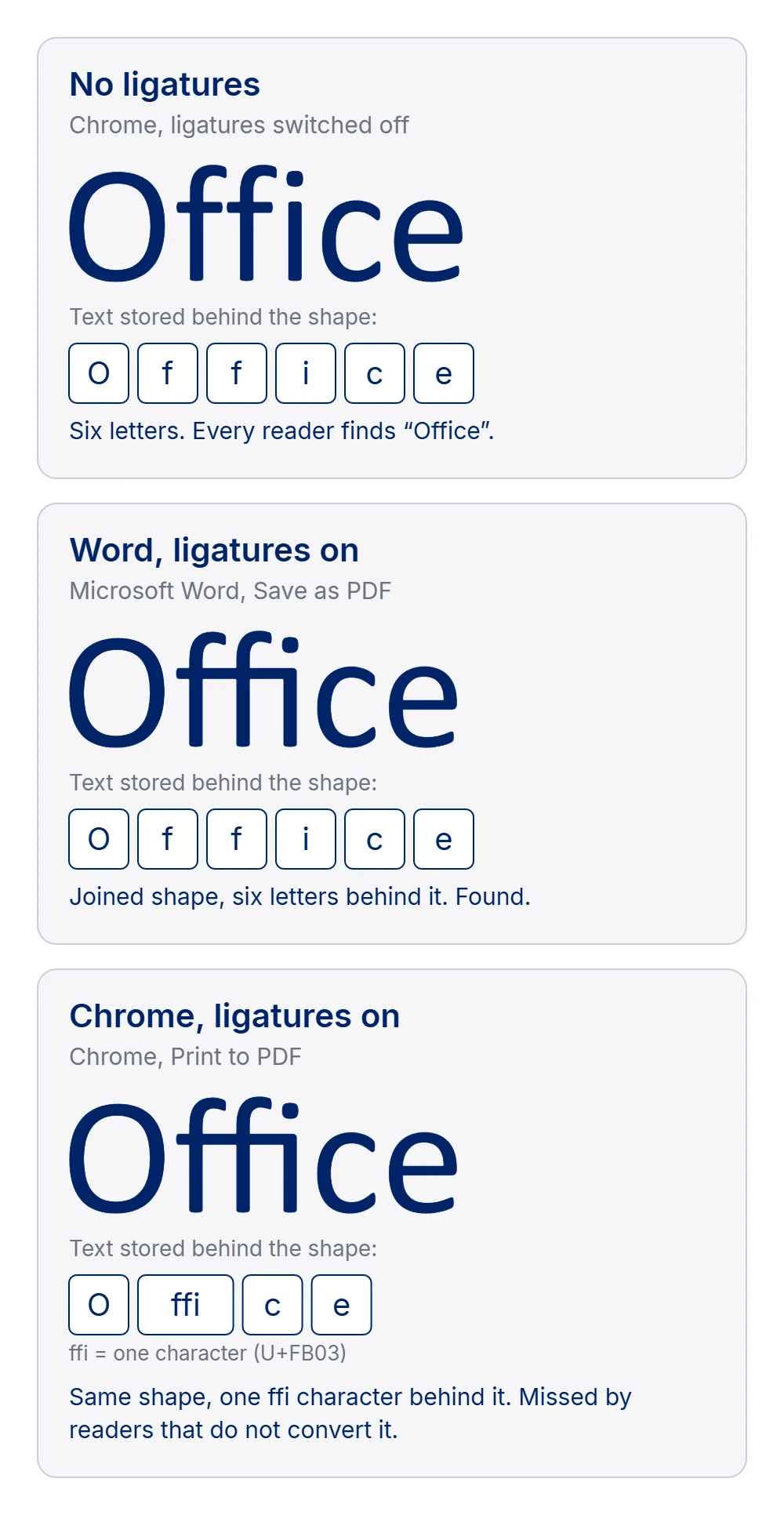
Jerry's idea for showing it was a big "Office" with and without ligatures, so here it is, with one addition: the letters stored behind the shape.
| How the PDF was made | Ligatures drawn | Text behind the shape | Found without converting | Found by Adapt to Success |
|---|---|---|---|---|
| Word, default settings (Calibri, Aptos) | No | Plain letters | 29 of 29 | 29 of 29 |
| Word, ligatures switched on (Calibri)* | Yes | Plain letters | 6 of 6 | 6 of 6 |
| Google Docs (Calibri, Arial, Georgia) | No | Plain letters | 29 of 29 | 29 of 29 |
| Chrome, Calibri | Yes | One character per ligature | 3 of 29 | 29 of 29 |
| Chrome, Aptos | Yes | One character per ligature | 17 of 29 | 29 of 29 |
| Chrome, six other fonts | No | Plain letters | 29 of 29 | 29 of 29 |
* A shorter test document with six of the words. With Word's default settings no ligatures were drawn at all.
Three things stand out. First, Jerry was right: when ligatures are switched on in Word, they do pass through to the PDF. The joined shape is there. Second, Word stores the plain letters behind that shape, so every reader I tried still found the words. Third, Chrome draws exactly the same shape but stores a single ffi character behind it. A reader that takes the text as it is stored found 3 of the 29 words in the Calibri file.
Here is the same difference as the text a reader actually gets out of the two files, with every ligature character in a box:
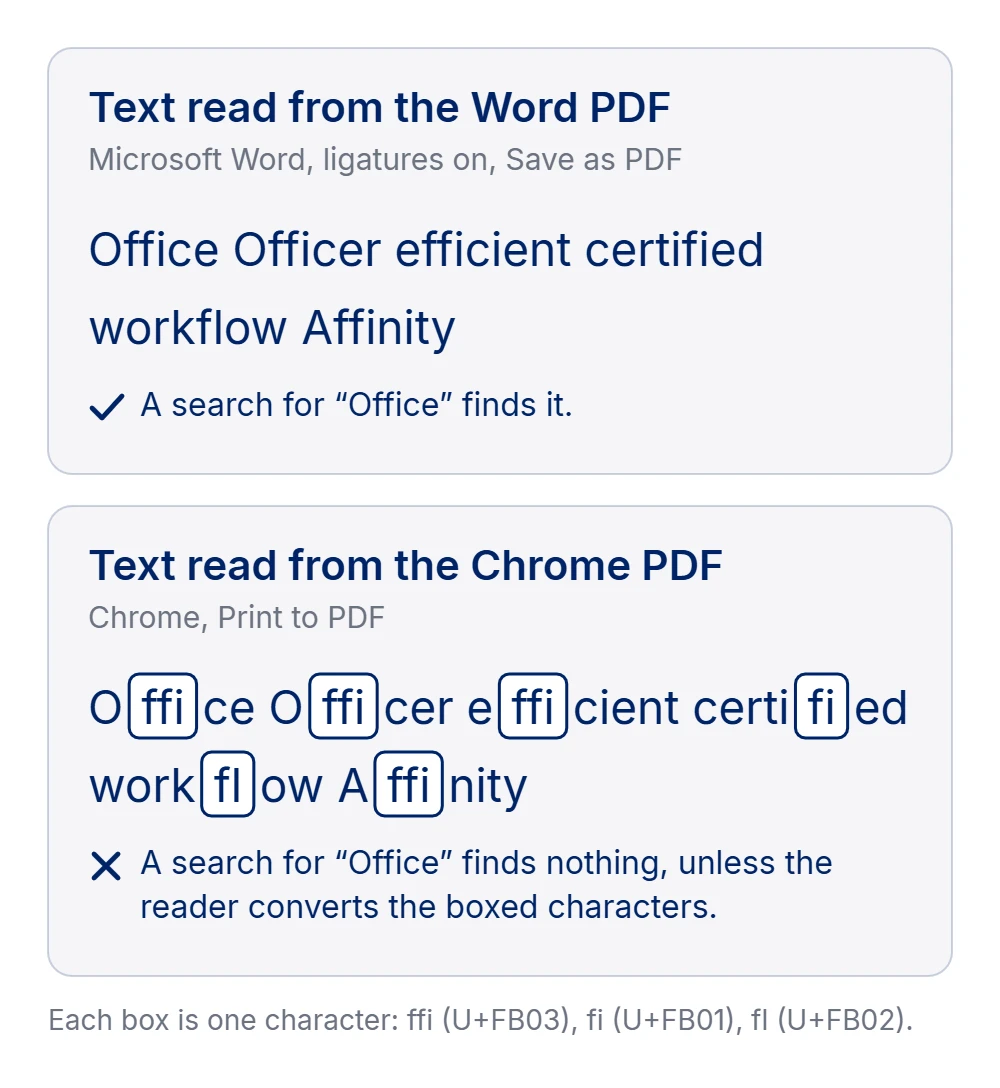
To be fair to Chrome, it also stores the real letters in a second, optional field of the PDF, and one of the readers I tried found all 29 words. Whether the reader inside an employer's system does the same is the whole question.
Which programs turn it back into letters
Mozilla's pdf.js, which runs inside Firefox and inside Adapt to Success, normalises by default; it only stops when a developer switches that off (pdf.js source code (opens in a new tab)). Apache PDFBox, which many server systems use, does it on every line it reads, with a note that it will "convert the single "fi" ligature to "f" and "i"" (Apache PDFBox source code (opens in a new tab)). PyMuPDF, a popular choice for developers who build CV parsers in Python, does the opposite by default: ligatures "are passed through to the application in their original form" (PyMuPDF documentation (opens in a new tab)). Sensible, a company that extracts data from PDFs for a living, warns its own users that "Even if the rendered document looks fine, ligatures can still exist in the extracted text" (Sensible, Ligatures (opens in a new tab)).
Which of these sits inside a given employer's system is not something you can see from the outside. That is the honest reason to prefer a file where the question never arises.
It is not only software that stumbles
Screen readers read the same text layer. Minnesota IT Services tested PDFs with ligatures made in Adobe InDesign and Adobe Illustrator. Those from Illustrator, and from older versions of InDesign, had character encoding errors, while the newest InDesign version tested did not. In a test file from Illustrator, the JAWS screen reader read "coffee" as "Coee" and "flavor" as "avor" (Minnesota IT Services, 2021 (opens in a new tab)). The UK Department for Transport's guidance for its staff says ligatures "can lead to accessibility issues, particularly for screen readers" and tells them to set Ligatures to None in Word (Department for Transport, 2025 (opens in a new tab)). Neither is about CVs, but a recruiter who uses a screen reader is reading your CV the same way.
Word files can go wrong too
None of this makes a Word file safe by default. Almost everything on the vendors' list above has nothing to do with the file type: a table, a text box with your phone number in it, or a two-column template causes the same trouble in Word as in PDF. A password-protected Word file fails just as surely as a locked PDF. A Word file with your name in a text box can be worse than a clean PDF.
What my own CV looked like to the software
Before writing this, I ran the CV I used for all of those applications through the same readers. It was a Word file saved as PDF, in Calibri, and it contained no ligature characters at all, so ligatures were never my problem. The layout was. Two readers read the same file in two different orders. pdf.js, the reader inside Firefox and Adapt to Success, began with the page number in my footer, "Side 1 af 2" (Danish for page 1 of 2, left in the footer of an English CV), then read the Ambitions box and my contact details from the sidebar, and only then my name. Xpdf's pdftotext began with my name, but slotted the Ambitions box into the middle of my work history, between two jobs. Same file, two different stories, and neither of them was the one I had designed.
What it means for you
Send Word unless the job advert asks for a PDF. If you need a PDF, make it with Save as PDF in Word or with Download in Google Docs, not by printing a web page or an online CV builder's preview to PDF. And whichever you send, keep the layout simple: one column, real headings, your contact details in the body of the page. The file type matters less than what is inside it.
What a comment can do
Jerry's comment cost me a day, and it was the best-spent day of this series so far. The question was never really PDF or Word. It was what sits behind the letters you can see, and that is something nobody can check by looking at the page.
Sources
- Kindall, J. (7 October 2026). Comment on "Is a robot really throwing your CV away?" (opens in a new tab). LinkedIn. linkedin.com (opens in a new tab)
- Textkernel Developer Documentation. Getting started. Tx Platform v9, Resume Parser. developer.textkernel.com (opens in a new tab)
- Greenhouse Support (updated 2 October 2026). MyGreenhouse FAQ for Candidates. support.greenhouse.io (opens in a new tab)
- Indeed Editorial Team (updated 15 June 2026). Best Resume File Formats (Plus How To Save Your Document). Indeed Career Guide. indeed.com (opens in a new tab)
- Greenhouse Support. Unsuccessful resume parse. support.greenhouse.io (opens in a new tab)
- Textkernel Developer Documentation. Document Conversion Code Descriptions. Tx Platform v10, Resume Parser. developer.textkernel.com (opens in a new tab)
- Unicode Consortium. Alphabetic Presentation Forms. Code chart of The Unicode Standard, including the ligatures ff, fi, fl, ffi and ffl. unicode.org (opens in a new tab)
- Unicode Consortium. Unicode Normalization Forms. Unicode Standard Annex #15. unicode.org (opens in a new tab)
- Mozilla. pdf.js, src/display/api.js (getTextContent, disableNormalization, default false). github.com (opens in a new tab)
- Apache Software Foundation. Apache PDFBox, PDFTextStripper.java (normalizeWord). github.com (opens in a new tab)
- PyMuPDF documentation. Constants and Enumerations (TEXT_PRESERVE_LIGATURES). pymupdf.readthedocs.io (opens in a new tab)
- Sensible documentation. Ligatures. docs.sensible.so (opens in a new tab)
- DePew, J. (29 September 2021). Ligatures: Benefits and Pitfalls. Minnesota IT Services. mn.gov (opens in a new tab)
- Department for Transport (updated 20 February 2025). Use MS Word to create an accessible document. GOV.UK. gov.uk (opens in a new tab)
- Larsen, T. (7 October 2026). Own test of PDFs made with Microsoft Word (Microsoft 365, Windows), Google Docs and Chrome, read with pdf.js 3.11.174 with and without normalisation and with Xpdf pdftotext 4.00. 29 test words, eight fonts, and the PDF CV I used for my own applications.